
Welcome to PWA Properties CRM
The 3-minute first-time guide. Plan. Work. Achieve.
1 · Sign in with Google — you already have an account
Open crm.pwa-properties.com and tap Sign in with Google. Choose your company Google account (the one your work email is on). That's it — there is no password or PIN to create, and you stay signed in on that device for a month. If Google says your account isn't on the team roster, ask an administrator to add you.
2 · Put it one tap away — phone and desk
iPhone (Safari)
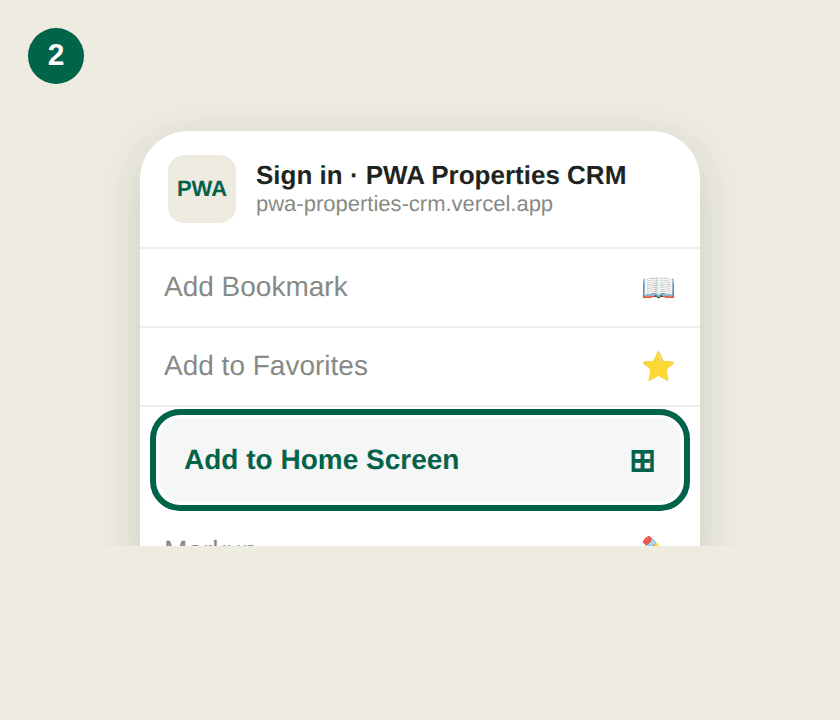
In Safari, tap the Share button (the square with the arrow), scroll down, and tap Add to Home Screen.
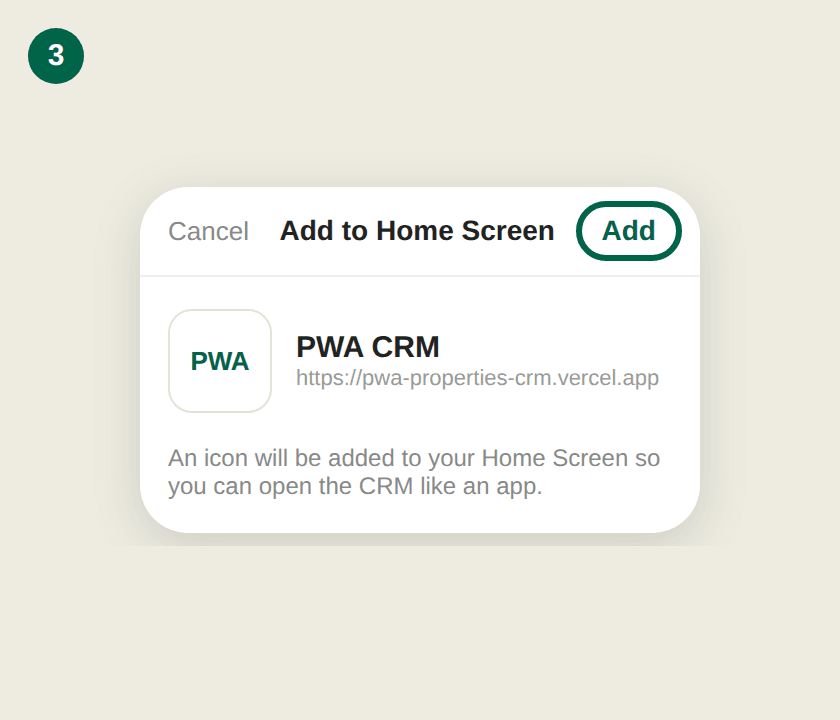
Tap Add. It now opens from your home screen like any other app — full screen, one tap. The home screen shows a tile for each tool you can use: the CRM for everyone, and the Capacity Ledger for the design team and management.
Android (Chrome)
Open the site in Chrome, tap the ⋮ menu in the top-right corner, then Add to Home screen (on some phones it says Install app), then Add. Same result: the icon on your home screen, one tap to open.
Computer (Chrome, Edge, or Safari)
Open the same address and bookmark it — press Ctrl+D on Windows or ⌘+D on Mac, or click the ★ star in the address bar. The desktop view is worth it: the Projects tab spreads out into the full tracker table — the old Excel workbook, alive and clickable — which is where the weekly project review happens.
3 · Log a call in about 30 seconds
The Calls tab is home base. Tap Log a call, pick the customer or vendor, the person you spoke with, and whether it was a call, email, or visit. Add a short subject, any notes worth remembering, and — if it relates to a project — pick the project. Set a follow-up date if you need a nudge later. That's it. If the company or person isn't in the system yet, add them from the Accounts tab first (takes a few seconds).
4 · Projects — the tracker lives here now
The old Excel project tracker workbook is retired — it now lives fully functioning inside the Projects tab. Every job shows its phase checklist (Pre-Design through Post-Construction), a health flag (On track / At risk / Delayed), and percent complete — computed automatically from the phases. Open a project and tap a phase to update its status the moment something finishes; tap the health chip when a job slips or recovers. On a computer, the Projects page becomes the familiar full tracker table — every phase and health flag one click to change, always current for everyone, no spreadsheet to pass around.
5 · Leads — don't let ideas evaporate
Heard about a deal, a site, a maybe-someday project? Put it in the Leads tab — a name is enough. When it becomes real, tap Convert to project and it moves onto the tracker with its history intact.
6 · The 6:15am report
Every weekday morning the whole team gets an email with the previous day's logged calls — who talked to whom, about what. What you log is what the team sees.If it isn't in the CRM, it didn't happen.